Introduction
In the ever-evolving world of mobile photography, efficiency and consistency are key. Snapseed, Google’s powerful and free photo editing app, has long been a favorite among photographers and content creators for its professional-grade tools and intuitive interface. One of its most innovative and underutilized features is the Snapseed QR code, a tool that revolutionizes how editing styles are shared and applied. This comprehensive guide will delve into everything you need to know about this feature, from its basic mechanics to advanced applications for streamlining your creative workflow. By leveraging the Snapseed QR code, you can ensure visual consistency across your projects and save countless hours of manual editing .
What a Snapseed QR Code Is
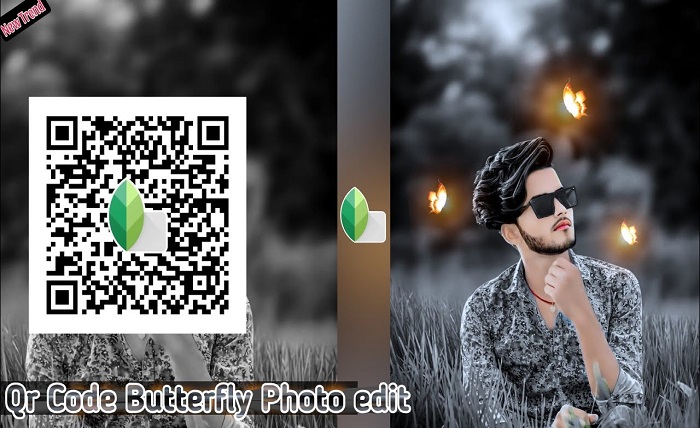
A Snapseed QR code is a unique, scannable code generated within the app that encapsulates a specific set of editing adjustments. Unlike traditional QR codes that link to a website or text, this special code contains the data for a custom photo filter or “Look” . When you create a Snapseed QR code, you are essentially saving the entire history of your edits—including adjustments to brightness, contrast, saturation, curves, and any applied filters—into a single, shareable image . This feature is based on Snapseed’s non-destructive editing principle, meaning the QR code stores the instructions for the edits, not the image itself, allowing it to be applied to any other photo seamlessly .
How to Create Your Own Snapseed QR Code
Creating a Snapseed QR code is a straightforward process that allows you to turn your signature editing style into a reusable preset. This is the most important step for anyone looking to build a consistent aesthetic or share their unique edits. To create a Snapseed QR code, start by opening the app and editing a photo to your liking, using any of its extensive tools. Once you are satisfied, follow these simple steps:
-
Tap on the Menu icon (three dots) located in the top right corner of the screen .
-
Select the “QR Look” option from the menu .
-
Choose “Create QR Look” to generate the code .
-
The app will ask you to name your QR code and may offer a choice of color schemes for the code’s appearance, such as “Warm Sunset” or “Cool Urban” .
-
Once generated, you can save the Snapseed QR code as a JPEG image to your device’s gallery or share it directly with others via social media, email, or messaging apps .
How to Scan and Apply a Snapseed QR Code
Applying an editing style from a Snapseed QR code is just as easy as creating one. This feature is incredibly useful for applying a professional or pre-defined look to your photos instantly, ensuring you maintain a uniform style. To scan and apply a Snapseed QR code to your image, follow these steps:
-
Open the Snapseed app and load the photo you wish to edit.
-
Tap on the “Looks” icon (which looks like a filter icon with a small arrow) in the top right corner of the screen .
-
Scroll down and select the “QR Look” option, then choose “Scan QR Code” .
-
Point your device’s camera at the Snapseed QR code displayed on another screen or piece of paper. The app also allows you to upload an image of the QR code from your gallery if it’s saved on your device .
-
Once the QR code is scanned, all the encoded adjustments will be applied instantly to your photo. You can then save the image or continue to fine-tune the edits .
Top Snapseed QR Code Preset Ideas to Use
If you are looking to expand your editing toolkit, there is a vast community of Snapseed users who share their Snapseed QR codes online. These presets can give your photos a unique, professional look with a single scan. While you can find thousands online, here are some popular preset ideas for your Snapseed QR code collection :
-
Black and White: A timeless classic that creates bold, monochromatic images by adjusting shadows and highlights for a perfect vintage feel .
-
Vintage Effect: This preset adds a nostalgic, warm haze with slightly boosted saturation and darkened shadows, reminiscent of old film photography .
-
High Definition (HD): This Snapseed QR code increases an image’s brightness and sharpness, creating a crisp, high-clarity effect ideal for landscapes and cityscapes .
-
Aesthetic Look: This preset enhances color saturation, shadows, and contrast to create a dynamic, moody, and visually striking style, often favored for portraits .
-
Portrait Glow: This Snapseed QR code uses skin-smoothing tools to reduce blemishes and wrinkles for a softer appearance while maintaining a natural look, making it perfect for portraits .
-
Lightroom Presets: These codes mimic the popular effects found in Adobe Lightroom, resulting in punchier colors and a professional, polished look .
Benefits of Using Snapseed QR Codes for Your Workflow
Integrating the Snapseed QR code into your editing workflow offers numerous benefits that can significantly enhance your productivity and output. This feature is not just about sharing filters; it’s a powerful tool for professional and personal photo management. The primary advantage is the immense time you save. Instead of manually replicating a complex series of adjustments for every photo, a Snapseed QR code allows you to apply the same sophisticated look instantly, making batch editing a breeze . This ensures consistency across your images, which is crucial for establishing and maintaining a cohesive brand identity on social media or for marketing materials . Furthermore, it streamlines collaboration, allowing teams to share a single Snapseed QR code to guarantee uniform editing styles, thereby simplifying workflows and enhancing the quality of group projects .
Practical Considerations and Workflow Optimization
While the Snapseed QR code is a powerful tool, there are a few practical considerations to keep in mind for optimal use. Understanding these limitations will help you use the feature more effectively. A Snapseed QR code can save most global adjustments but may not fully encapsulate highly selective edits, complex masking, or detailed brushwork . As a best practice, apply the Snapseed QR code first to establish a foundational “look,” and then make minor, image-specific adjustments like cropping or selective tweaks to perfect the final result . It’s also helpful to organize your codes by categorizing them based on style or project with clear, descriptive names for easy identification . Remember, the effectiveness of a preset can vary based on the original image’s lighting and composition, so testing them on a variety of images is recommended .
Conclusion
The Snapseed QR code is a game-changing feature that transforms the photo editing experience from a manual process into a streamlined, efficient, and collaborative one. Whether you are a social media influencer striving for a consistent feed, a marketing team ensuring brand uniformity, or a photography enthusiast looking to share your unique style, this tool empowers you to achieve professional results with a simple scan. By learning to create and apply a Snapseed QR code, you unlock a world of creative potential, saving time and ensuring your visual storytelling remains powerful and consistent. Embrace this feature and elevate your mobile photography to the next level.
FAQs
1: What types of adjustments can a Snapseed QR code save?
A1: Snapseed QR codes can save most global adjustments, including those from Tune Image (brightness, contrast, saturation, ambiance, highlights, shadows, warmth), Details, Curves, White Balance, and various filters from the “Looks” section. Generally, they do not capture highly selective edits like precise brush masks or complex healing actions .
2: Can I load a Snapseed QR code from the same device I’m editing on?
A2: No, you cannot load a Snapseed QR code from the same device. You need to have the QR code displayed on an external screen, a printed piece of paper, or another device to scan it with the phone you are using to edit the photo .
3: Do Snapseed QR codes work across different mobile operating systems?
A3: Yes, Snapseed is available on both iOS and Android platforms, and the QR code functionality is designed to be cross-compatible. A QR Look created on an Android device can be seamlessly imported and applied on an iOS device, and vice-versa .
4: Is there a limit to how many custom Looks or presets I can save in Snapseed?
A4: Snapseed does not impose a strict, published limit on the number of custom Looks you can save. The practical limit is typically dictated by your device’s storage and the manageability of a large collection within the app’s interface .
5: Can I apply a Snapseed QR code to multiple photos at once?
A5: No, Snapseed does not offer true batch processing functionality for applying QR presets. Each photo must be opened individually within the app, and the imported Look applied manually. While this is quick, it is not an automated batch process